Running reports on submission data is one of the most common actions that program administrators perform. OpenWater provides some canned reports, but you can create your own custom reports as well.
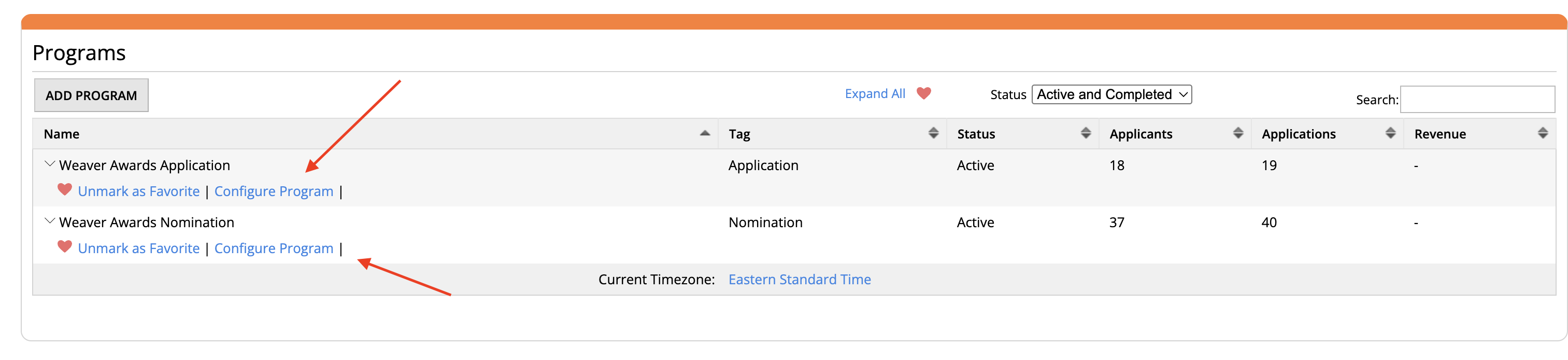
To run a submission report, first navigating to your programs. Decide which program you'd like to run this report in and click "Configure Program."
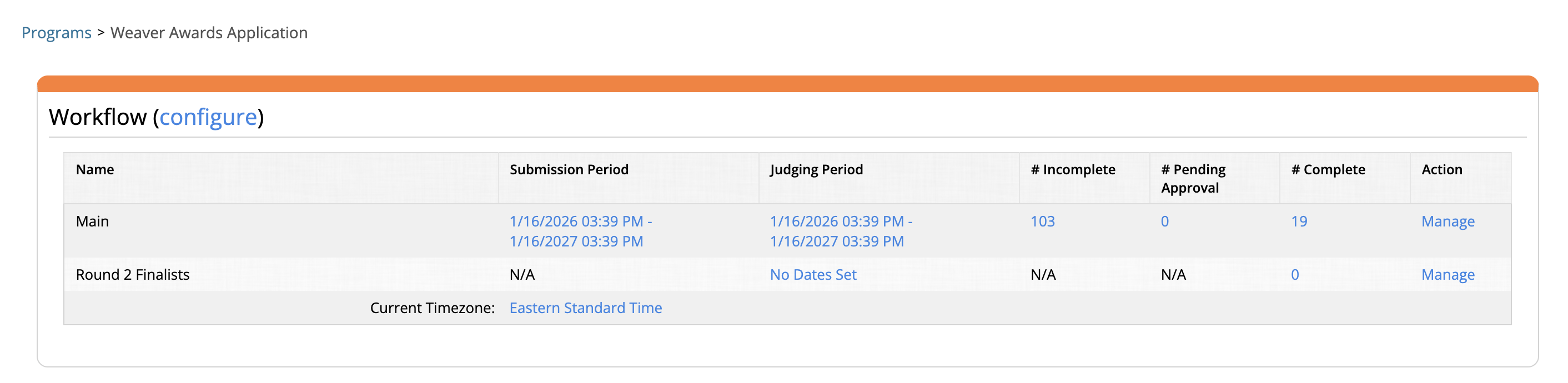
 On the next screen, select the round by clicking "Manage" on the right hand side.
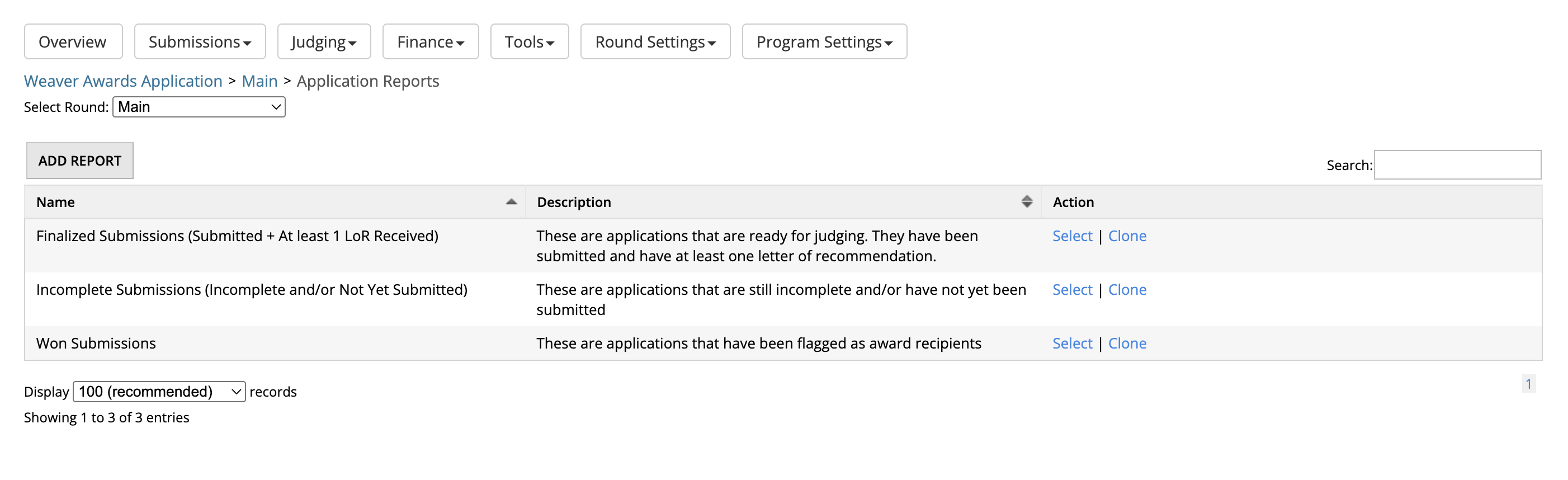
Under the Submissions drop down menu, click Reports.

Your Weave team admin has created some reports for you already! These reports show up here and they are available to you to use at any time.
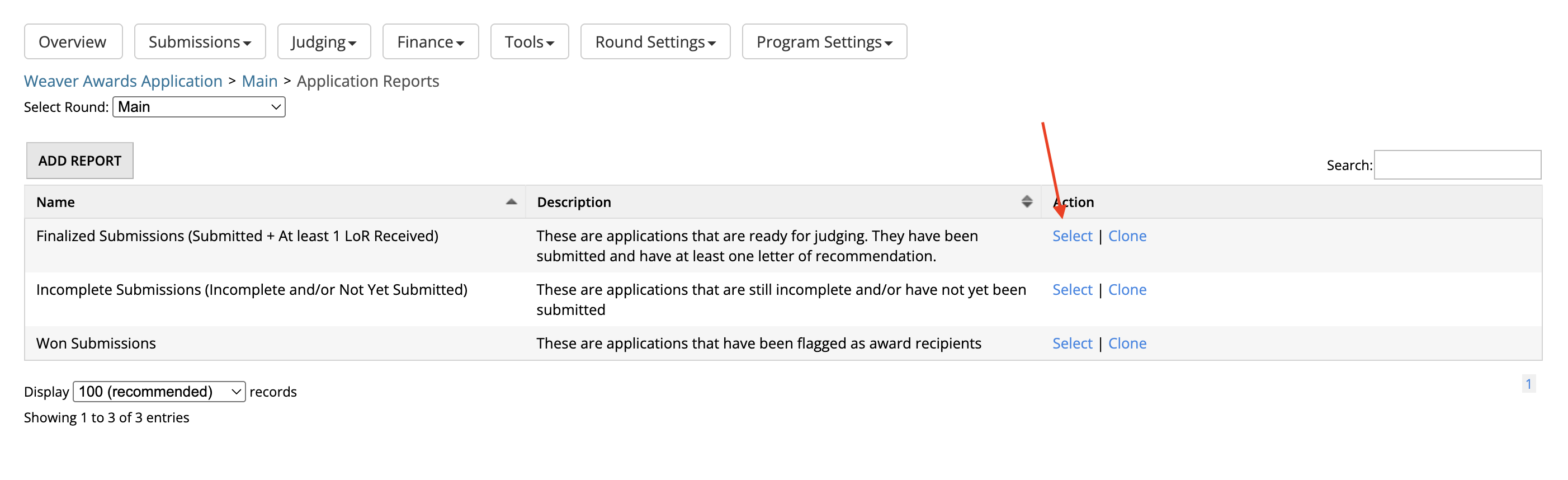
 Run a Canned Report
To run one of these pre-made reports, you can click "Select."
 Click View List to view a quick list of the submissions in this report. To Export to Excel, click Excel.
If you have a lot of submissions, the report may take some time to run.

Create a Custom Report
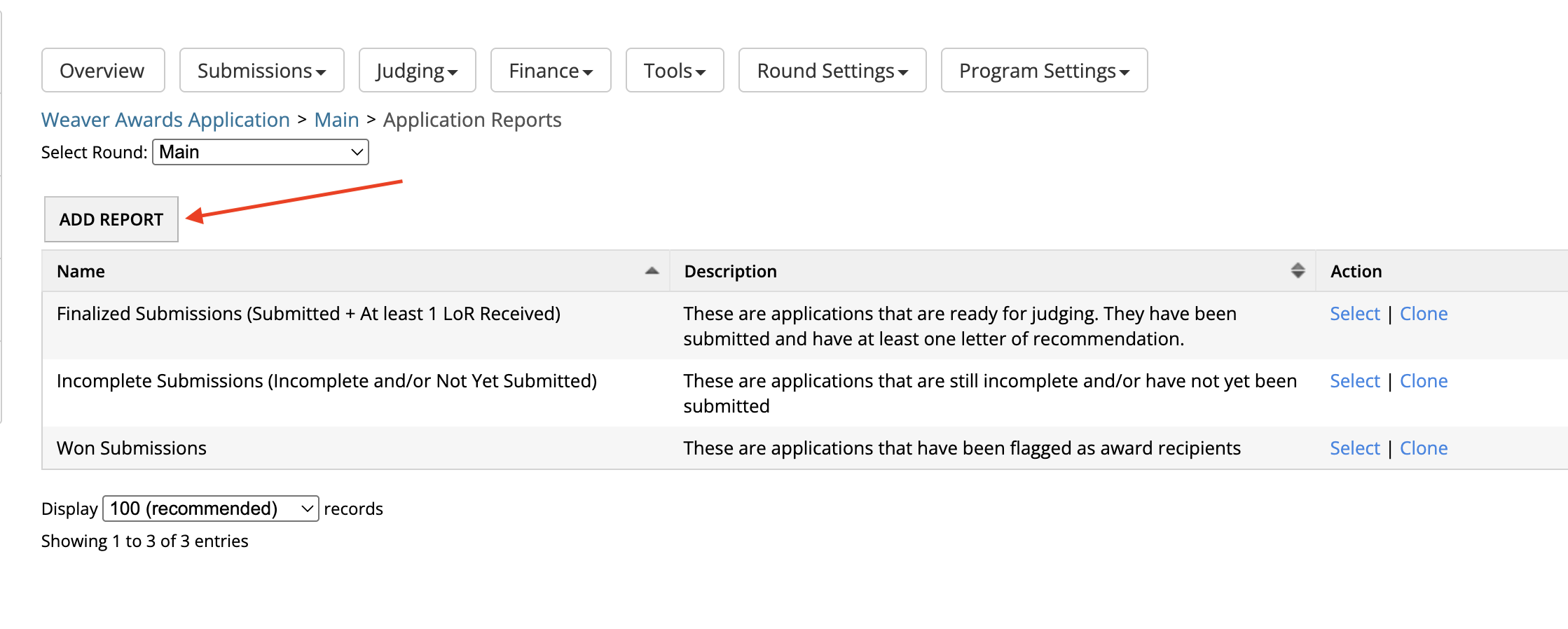
You can create your own custom reports at any time by clicking Add Report.
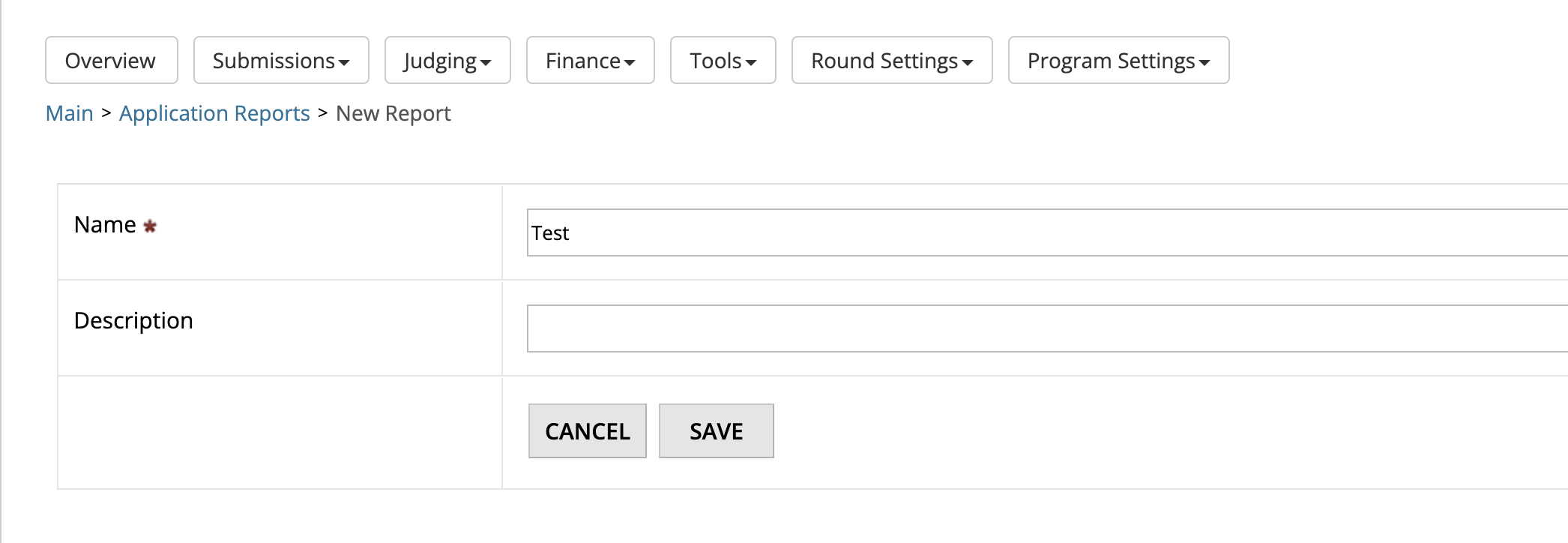
 Give your report a name and hit "Save."
 Immediately, you are taken to our Conditions builder.
You can create any report you like by mixing and matching conditions in the [all] and [any] section. Learn more about the OpenWater condition builder which is used throughout the system.
 Note:
Note:
If there are no conditions set on this page, the report will pull every submission in this round.
If you need to pull a specific set of data (for example: "All Completed Submissions" or "All Incomplete Submissions") you must configure the conditions.
Specify Sort Order
Much like the conditions builder you can also choose how the data should be sorted. You can add as many levels of sorting that are needed. OpenWater will sort in order of your selections.

You can specify Ascending (A-Z) or Descending (Z-A) sort order and drag and drop the levels within the configuration table.
By default, the report is set to return all data available within a submission report. To customize the output, click on the "CVS/XLS Exports" tab.
How to customize your report
By default, the report will pull all submission form fields as denoted by "All Data."
If you would like to choose your submission form fields, click on "Subset of Data" and then click "Configure Fields."
There are 4 types of data you can pull:
System
Session Form
Submission Form
Submission AI Prompt
Note: for your program, you will not utilize "Session Form" data fields, so feel free to ignore this option.
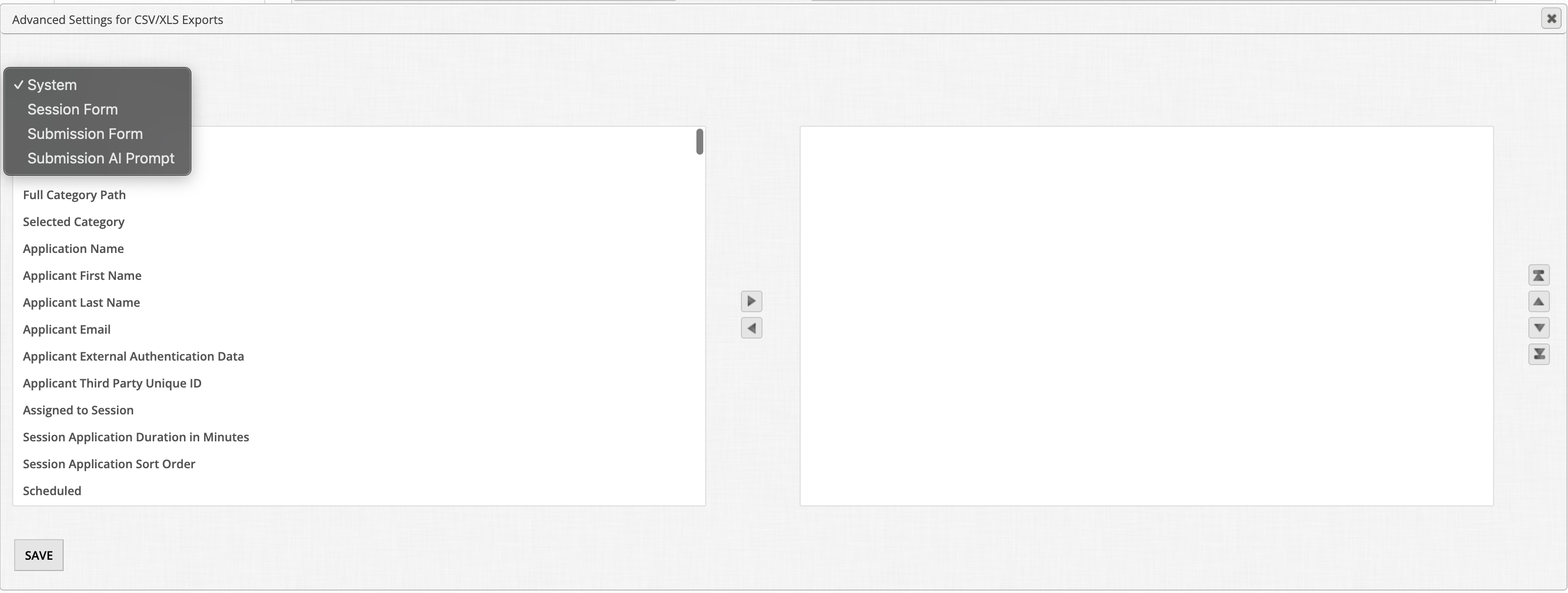 You will most likely try to pull Submission Form data. Select "Submission Form" in the first dropdown. The next dropdown indicates the Round. The third dropdown is where you can choose the question page that contains the field you're trying to export.
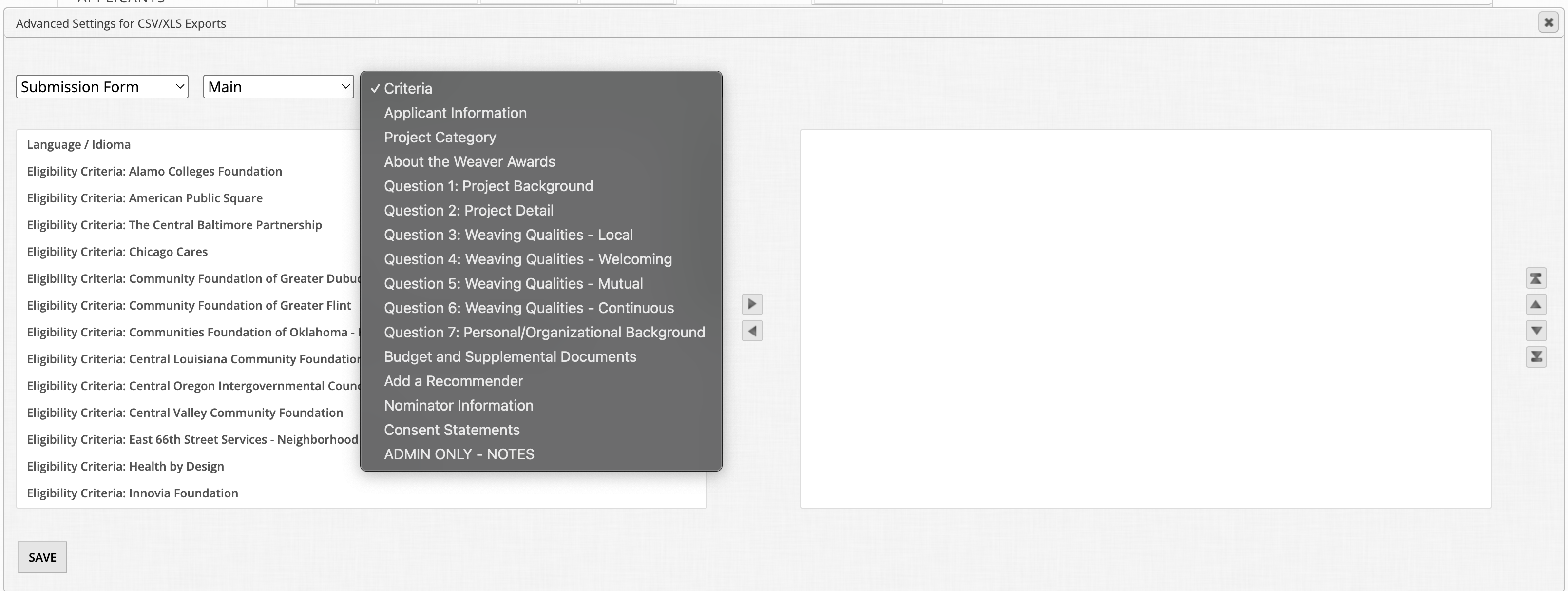 To add the fields to your report, you can select individual fields by clicking the field name, or select multiple fields by holding down the Shift key while selecting the fields. When the desired fields are selected, click the right arrow in the middle of the page to add them to your report.
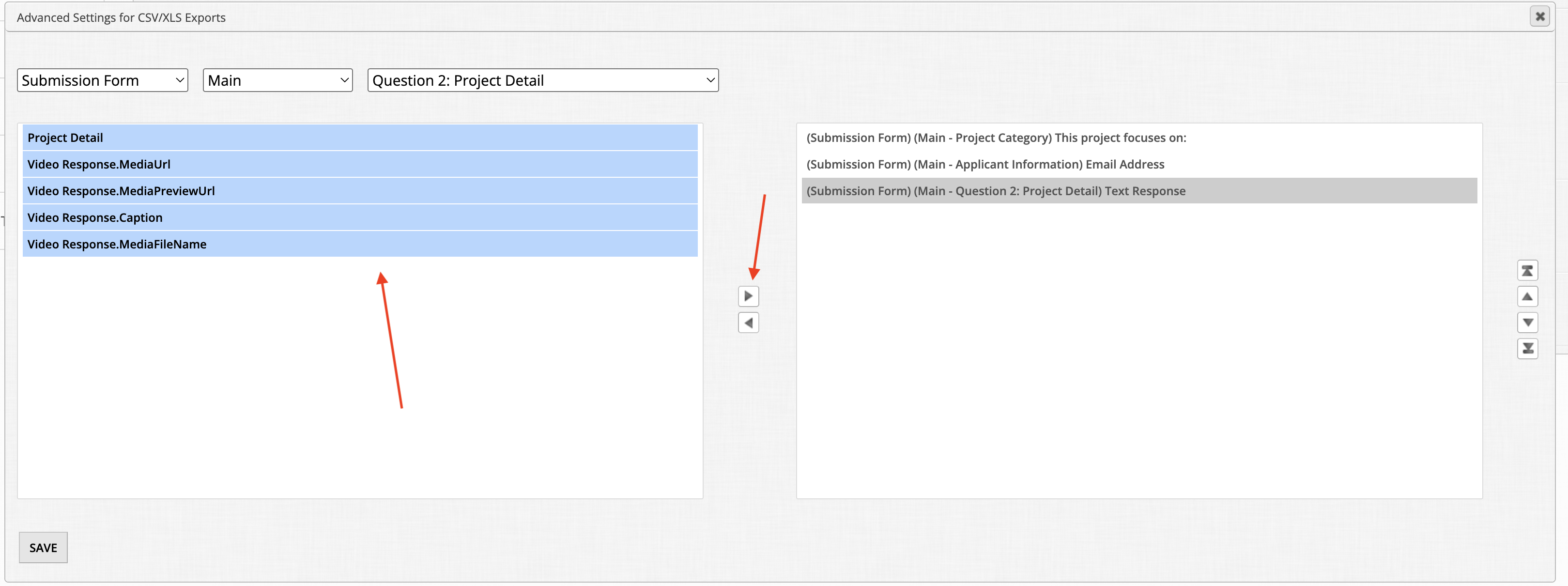 Once you've added the fields to the right hand side, you can use the up/down arrows on the far right to reorder your columns. Whatever order is designated here will reflect as the CSV/Excel report's columns.
Now that you've selected your desired fields, click Save to return to the CSV/XLS Exports tab. You will see a list of all selected fields for easy review.
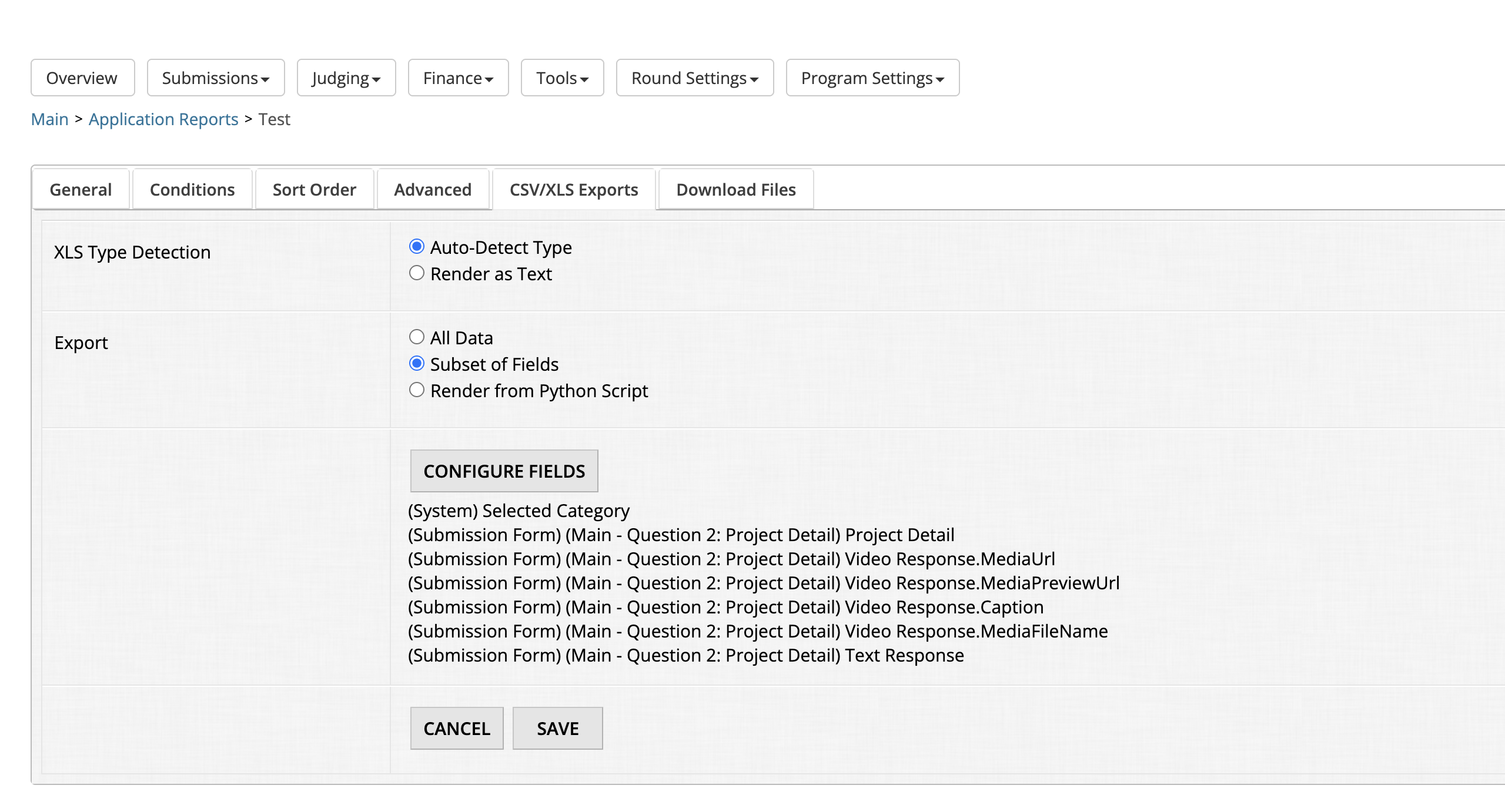 Returning to the General tab, you can now export your report to CSV or Excel. You will notice that the CSV/Excel Export is now set to Subset of Fields.